Step 1
This step gathers information on the details of the Safety Observation such as the time taken, area it was observed and who else observed it.
The screenshot below shows example information entered for Step 1.
The red stars (*) next to the boxes mean you must enter some information or choose an option in that space.
Note: If logging from a mobile device the "Add an attachment" button will allow you to take photo or upload one from your phone/device images. For desktop logging you can add multiple images once Safety Observation is logged.

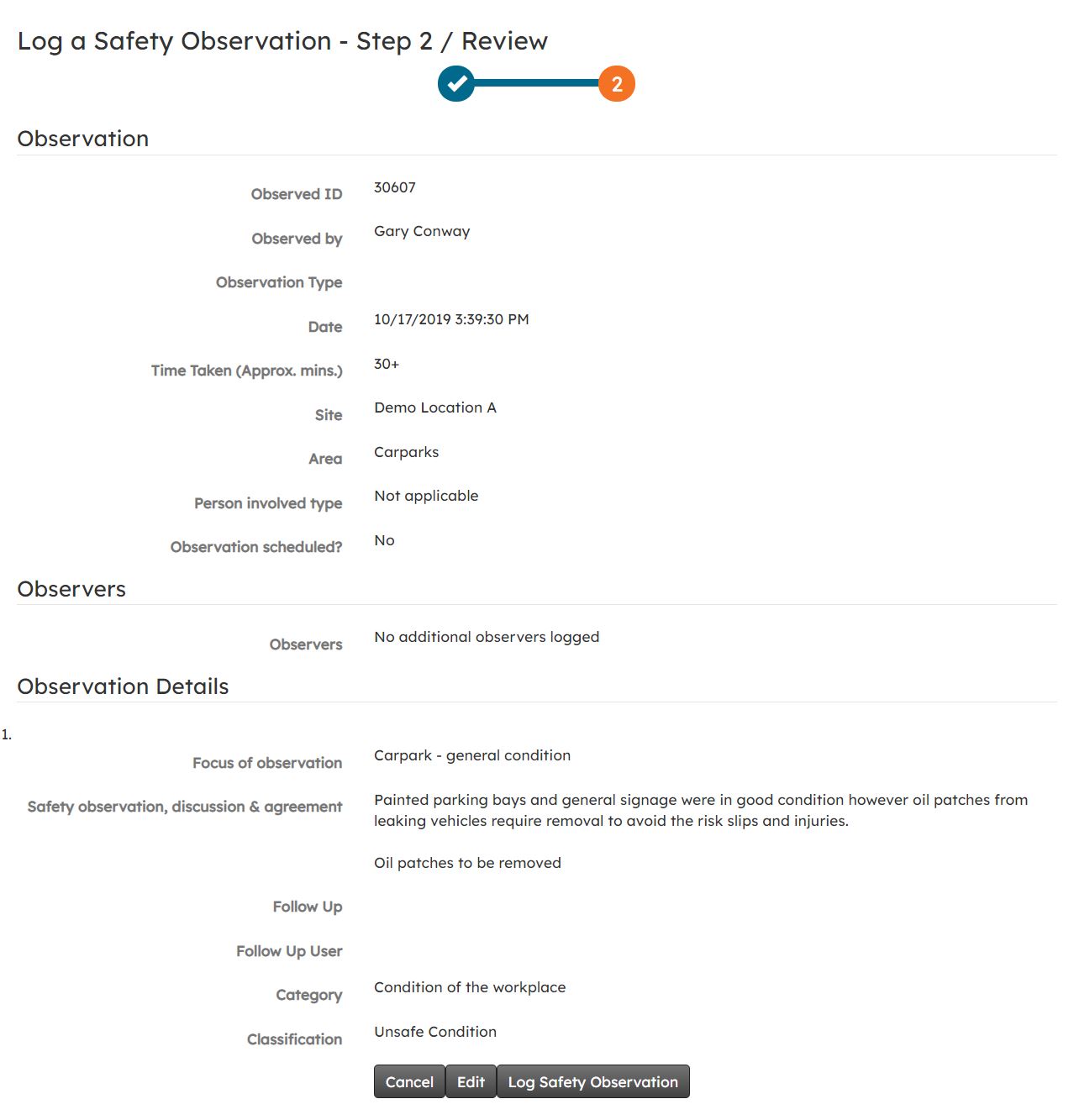
Step 2
Step 2 will display a summary of the Safety Observation. Here you can edit any step you have gone through, cancel the Safety Observation or lastly log the Safety Observation.